Des2Code — How to Use
Summary
Des2Code is a tool that uses AI to match imported code components against a Figma design in your project.
Rather than generating code itself, it answers "which components look similar to this design?"
Coding tools like Claude and Cursor then use those matches as a reference to implement the final code.
Prerequisites
The following setup is required before running Des2Code.
1. Register a Figma Token
Register a Personal Access Token to allow access to your Figma files.
2. Import Components
Code components must be imported in advance as matching targets.
If no components are registered, the matching result will return 0 matches.
Follow the Code Import guide to prepare Storybook screenshots, validate component discovery, run a small import, and then import the full component catalog.
3. Import a Design
Import the Figma design you want to match. During import, AI analyzes the design and generates vector embeddings (this takes approximately 1–5 minutes).
4. Configure the Figma MCP
The Figma MCP server must be configured in AI agents such as Claude or Cursor.
If the Figma MCP server is not configured,
Setup & Usage
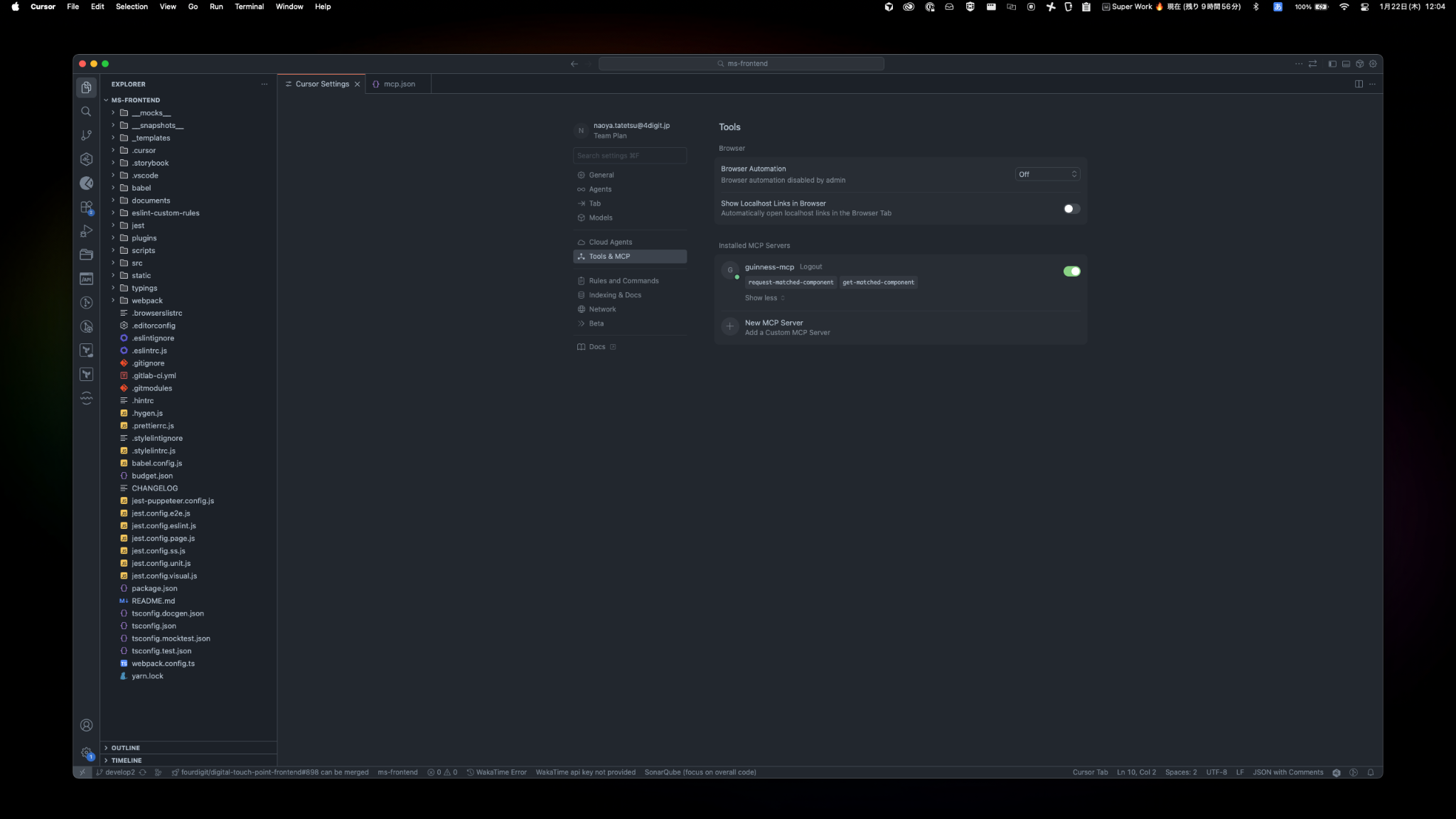
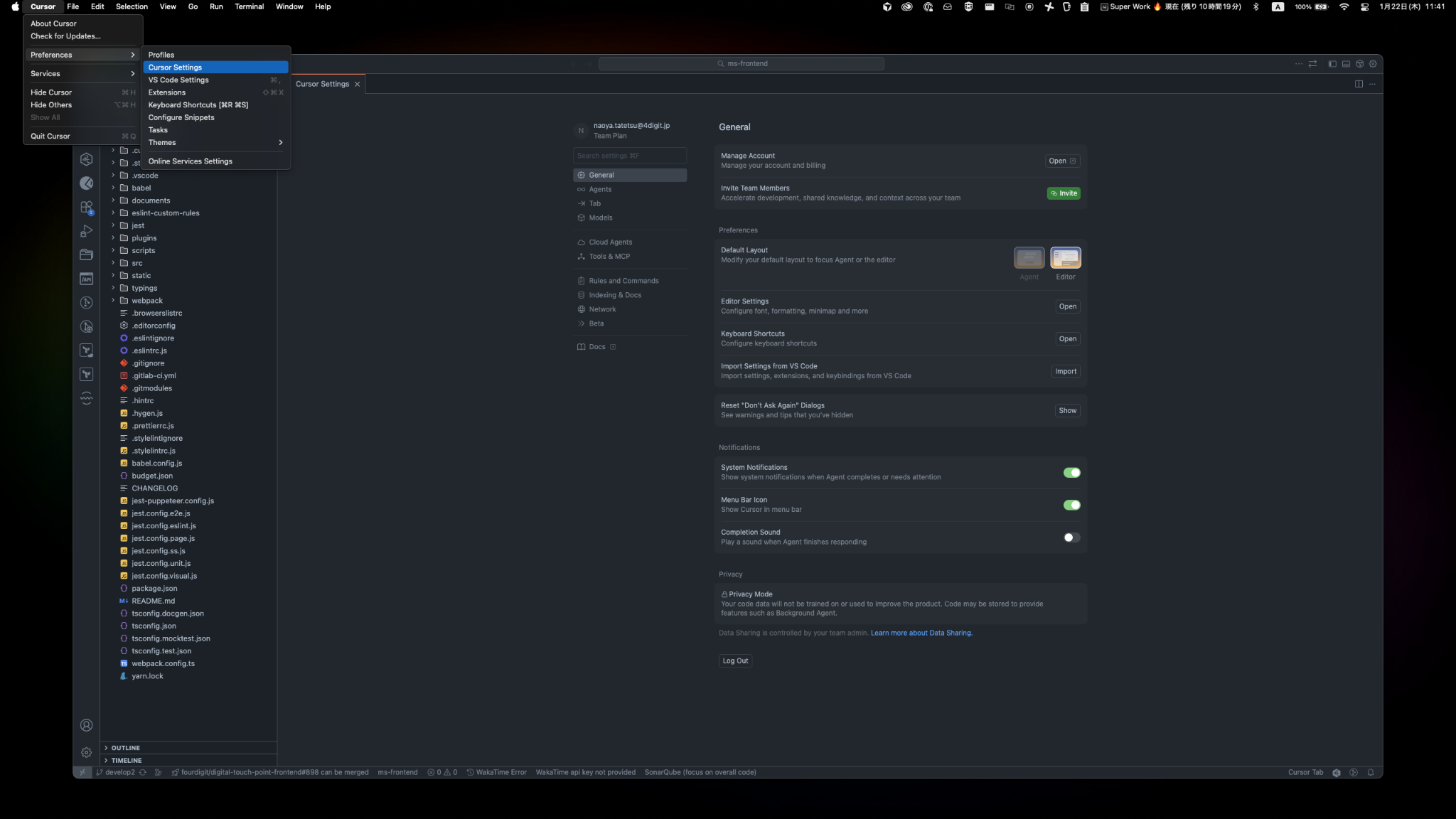
1. Launch Cursor and open Cursor Settings.
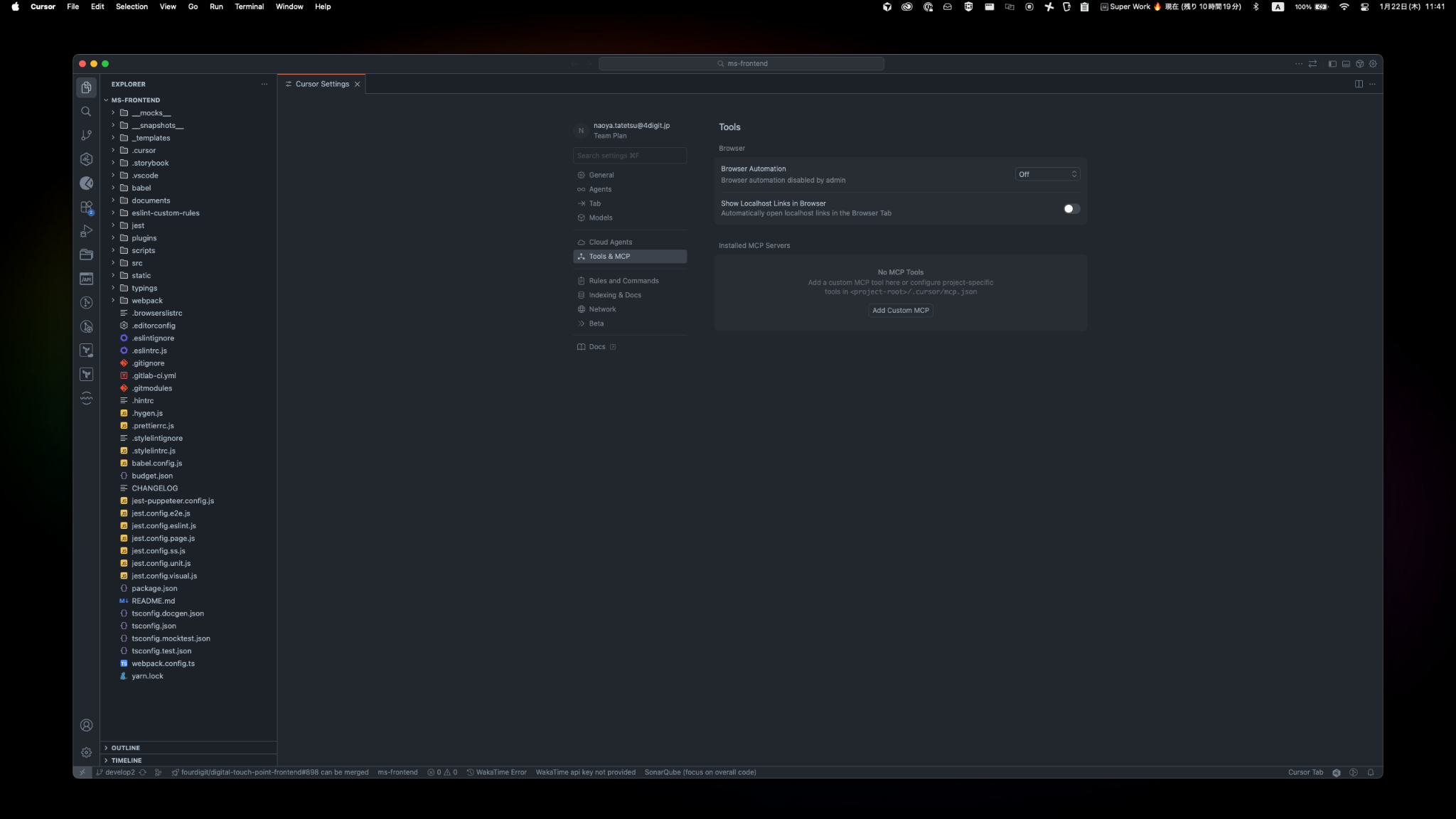
2. Select Tools & MCP, then click Add Custom MCP.
3. mcp.json will open. Copy and paste the following, then save.
{
  "mcpServers": {
    "guinness-mcp": {
      "url": "d1972570k4gd0d.cloudfront.net/mcp",
      "headers": {
        "Authorization": "Bearer zch-jfg3xhv3rex2MET"
      }
    }
  }
}
4. If guinness-mcp shows a green indicator, the connection is successful.